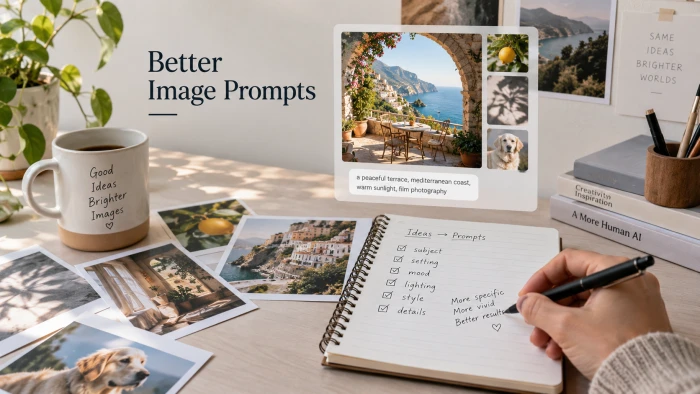
How to Write Better AI Image Prompts
GUIDE Updated September 2026 About a 12 minute readHow to Write Better AI Image PromptsA complete, practical guide t...
A prompt is a set of instructions in plain language. The more precisely you describe what you want, the closer the picture lands to what is in your head. This guide breaks down the parts of a strong prompt, gives you a repeatable formula, and compares the
GUIDE Updated September 2026 About a 12 minute read
How to Write Better AI Image Prompts
A complete, practical guide to turning plain descriptions into precise, repeatable results.
A prompt is a set of instructions in plain language. The more precisely you describe what you want, the closer the picture lands to what is in your head. This guide breaks down the parts of a strong prompt, gives you a repeatable formula, and compares the main tools with honest trade-offs.
AI image generators turn written descriptions into pictures. They read your words, weigh them, and try to build an image that fits. Because the model is guessing at your intent, the quality of that guess depends heavily on how clear and specific your description is.
A vague prompt leaves too many decisions to the model. Ask for a car and you have no control over the make, angle, setting, time of day, or style, so the result is generic and hard to reproduce. A detailed prompt narrows those choices and makes the output match your intention more often. In practice this means fewer regenerations, more consistent results, and images you can recreate later by reusing the same wording.
Better prompts do not require artistic jargon. They require you to decide, in advance, what actually matters in the picture and then say it plainly.
Most strong prompts contain the same building blocks. You do not need every one every time, but knowing them helps you spot what a weak prompt is missing.
| Element | What it is, with an example |
|---|---|
| Subject | The main thing in the image, described clearly. a red fox, a vintage bicycle, an office lobby |
| Details | Specific attributes that remove guesswork. wet fur, rusted frame, marble floor |
| Style or medium | The visual language you want. photograph, watercolour, 3D render, line art |
| Composition | Framing and camera position. close-up, wide shot, top-down, rule of thirds |
| Lighting | Where the light comes from and its mood. soft morning light, harsh backlight, neon glow |
| Colour and mood | Palette and emotional tone. muted pastels, high contrast, warm and calm |
| Setting | The background or environment. a foggy pine forest, a minimalist studio |
| Technical settings | Aspect ratio and any camera or model terms. 16:9, 85mm lens, shallow depth of field |
Photographs make these ideas concrete. Each reference below shows one building block at work.
When you are not sure how to order everything, this sequence works well across most tools. Lead with the subject, because many models weight the earliest words most heavily, then layer detail outward.
1. Subject : who or what the image is about
2. Key details : the attributes that must be right
3. Style or medium : photo, illustration, render, and so on
4. Composition and lighting : framing plus the light source and mood
5. Colour and mood : palette and overall feeling
6. Technical settings : aspect ratio and any camera terms
Put together, the formula produces a prompt like this:
a red fox standing in fresh snow, thick winter coat, breath visible in cold air, wildlife photograph, low side angle, soft overcast light, cool blue and white palette, shallow depth of field, 3:2
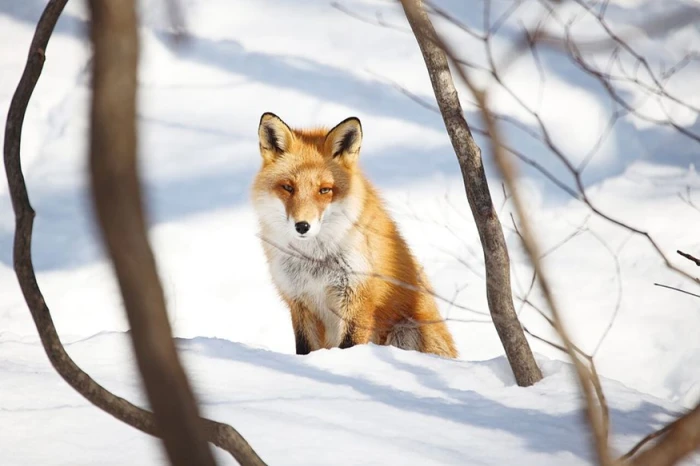
Close to the prompt above: a red fox in fresh snow, soft light, shallow focus, framed at 3:2.
Every element in that prompt maps to one line of the formula. If a result is off, you now know exactly which part to adjust.
The clearest way to see the effect of specificity is to place a lazy prompt next to a considered one for the same idea.
| Weak prompt | Strong prompt |
|---|---|
a dog The model chooses the breed, angle, background, lighting, and style. Results vary wildly and are hard to repeat. | a golden retriever puppy sitting in tall summer grass, warm late-afternoon backlight, shallow depth of field, photographic, 3:2 Subject, setting, lighting, style, and framing are all decided, so the output is consistent and closer to intent. |
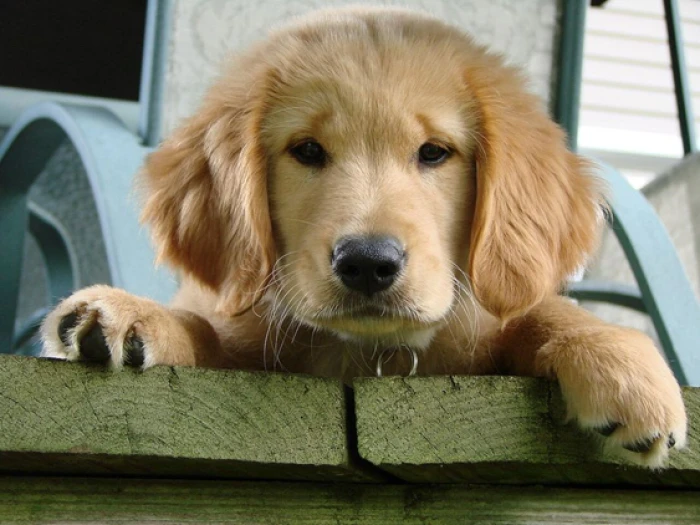
The subject of the strong prompt: a clearly described golden retriever puppy.
Notice that the strong version is not longer for the sake of it. Each added word removes a decision the model would otherwise make for you.
Two kinds of instruction shape an image. A positive prompt describes what you want to appear. A negative prompt lists what you want kept out, such as blur, extra fingers, watermarks, or text. Support for explicit negatives differs by tool.
| Instruction type | What it does | How it is used |
|---|---|---|
| Positive prompt | Describes the content, style, and setting you want. | Written as the main prompt in every tool. |
| Negative prompt | Names elements or flaws to exclude. | A dedicated field in Stable Diffusion and Flux; the --no parameter in Midjourney; a plain request such as no text when chatting with ChatGPT Images. |
Practical tip: if a tool has no negative field, you can often exclude something by describing the positive instead. For a clean sky, clear blue sky works better than no clouds, because some models focus on the noun and add the very thing you wanted removed.
Begin with subject and style only. Generate, see what the model assumes, then add detail to correct it. This teaches you how a given tool interprets your words.
When you edit a prompt, adjust a single element per generation. If you change lighting, palette, and framing all at once, you cannot tell which change helped.
For photographs, use photography terms such as focal length, aperture, and lighting direction. For illustration, name the medium and technique, for example gouache, cel shading, or ink and wash.
Several tools accept an image alongside your text to guide style, composition, or character likeness. This is often faster than describing a specific look in words.
Decide the shape before you generate. Portrait social posts want a tall ratio such as 4:5 or 9:16, video thumbnails and desktop scenes want 16:9, and profile images want 1:1.
Tools that expose a seed value let you reproduce or gently vary an image. Keeping a short log of prompts, settings, and seeds means you can recreate a good result instead of chasing it again.
The right tool depends on your goal, budget, and how much control you want. Below are the generators most people reach for, with a short description and honest advantages and limitations for each.
Note on accuracy: versions, pricing, and features in this field change often. Treat the details below as a snapshot and confirm current terms on each tool's official site before you subscribe or build on it.
Aesthetic quality.
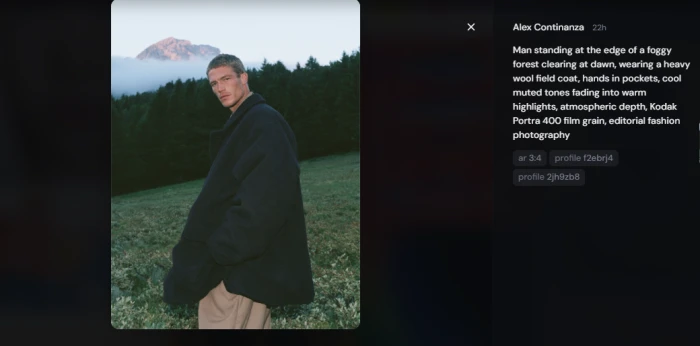
A subscription tool known for producing polished, stylised images with little effort. It runs through a web app and a Discord bot, and it uses parameters such as --ar for aspect ratio and --no for exclusions.
In short: the fastest route to a polished, stylised image if you are willing to pay a monthly fee.
| Advantages | Limitations |
|---|---|
Strong default look with minimal prompting Wide range of artistic styles Style and character reference features for consistency Paid plans grant commercial usage rights | No permanent free tier, plans start around 10 US dollars per month Limited automation options for individual users Built-in content filtering can block some prompts |
Prompt adherence.
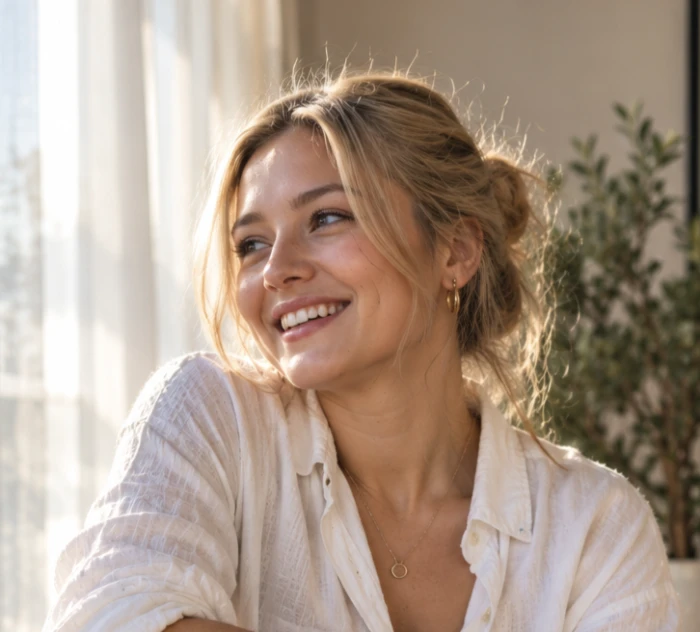
OpenAI's image generation now runs natively inside ChatGPT and through the API as the GPT Image series, which replaced the older DALL-E models after they were retired in 2026. Its strengths are following complex instructions, rendering readable text, and refining an image through conversation.
In short: the most reliable at doing exactly what you ask, strong at text, and easy to start with.
| Advantages | Limitations |
|---|---|
Very accurate at following multi-part instructions Best in class at legible text inside images Conversational editing, for example move the logo left Available on free and paid ChatGPT plans | Free tier has usage limits and slower queues Fewer low-level controls than open models Generation can take up to about a minute |
Maximum control.
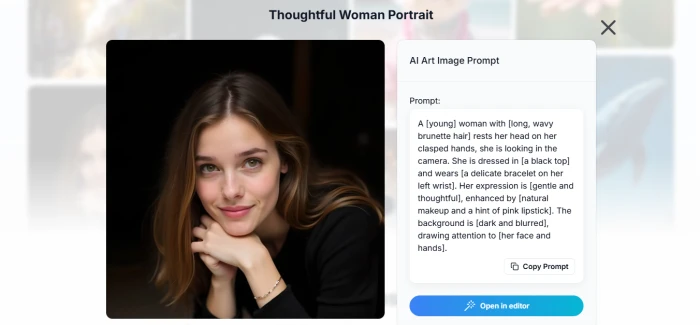
An open-source family of models you can run on your own hardware or through hosted interfaces. It offers the deepest control through custom models, composition guidance with ControlNet, and image-to-image workflows.
In short: the most control and privacy, in exchange for setup effort and capable hardware.
| Advantages | Limitations |
|---|---|
Free to run locally on a capable GPU Thousands of community fine-tuned styles Fine control over pose, composition, and output Full privacy when run on your own machine | Steep learning curve and fragmented tooling Local use needs a capable graphics card Licensing can be ambiguous for some community models |
Open-weight photorealism.
An open-weight model family from Black Forest Labs that matches the leading tools on photorealism at a low per-image cost. It is hosted by several providers and can also be self-hosted, and many former Stable Diffusion users have moved to it.
In short: near top-tier photorealism at a low price, aimed at slightly more technical users.
| Advantages | Limitations |
|---|---|
Strong photorealistic output Low cost per image through hosted providers Open weights allow self-hosting and customisation | Setup is more technical than a hosted chat tool Fewer polished consumer interfaces than Midjourney Quality varies between the free and paid model tiers |
Commercial safety.
Adobe's generator, trained on licensed and Adobe Stock content, aimed at users who need clearer commercial footing. It is integrated across Adobe's creative applications.
In short: the safer choice for commercial work and a natural fit if you already use Adobe apps.
| Advantages | Limitations |
|---|---|
Trained on licensed data, lowering commercial legal exposure Built into Photoshop and other Adobe apps Familiar workflow for existing Adobe users | Default aesthetic is less distinctive than Midjourney Best value comes bundled with a Creative Cloud plan Fewer low-level controls than open models |
Text in images.
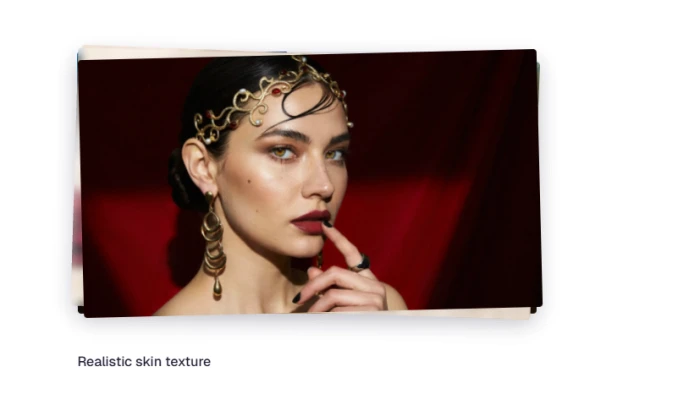
A generator that stands out for rendering accurate words and letterforms, which makes it a practical pick for logo-style work, posters, and social graphics that contain text.
In short: the tool to reach for when the words inside the image must be correct and legible.
| Advantages | Limitations |
|---|---|
Best in class accuracy for text inside images Useful for logo-style and typographic work Offers a limited free daily allowance with commercial rights | Narrower general style range than the top all-rounders Free tier uses slower generation Less suited to highly stylised fine-art looks |
Use this table to match a tool to a goal quickly. Access models and pricing shift over time, so verify the current terms before committing.
| Tool | Best for | Access model | Commercial use | Learning curve |
|---|---|---|---|---|
| Midjourney | Polished, stylised art | Paid subscription | Granted on paid plans | Low to medium |
| ChatGPT Images | Instruction accuracy and text | Free and paid tiers | Outputs are yours to use | Low |
| Stable Diffusion | Deep control and privacy | Free, self-hosted or hosted | Varies by model licence | High |
| Flux | Low-cost photorealism | Hosted per-image or self-hosted | Depends on tier and host | Medium |
| Adobe Firefly | Commercially safer assets | Paid, bundled with Creative Cloud | Designed for commercial use | Low |
| Ideogram | Images that contain text | Free and paid tiers | Commercial rights available | Low |
Quick rule of thumb: choose Midjourney for look, ChatGPT Images for accuracy and text, Stable Diffusion or Flux for control and volume, Firefly for commercial peace of mind, and Ideogram when the words in the image must be right.
Before you hit generate, run through this short list. It covers the decisions that most affect the final image.
Prompting is a skill you build by iterating. Start with the formula, change one thing at a time, keep the results that work, and your prompts will get sharper with every session.
Better prompts come from clearer decisions, not longer text. Lead with your subject, describe the details that must be right, name a style, then set the framing, lighting, colour, and aspect ratio on purpose. When a result is close but not right, change one thing at a time, and save the prompts and settings behind your best images so you can repeat them.
For tools, match the pick to the job rather than chasing a single winner:
The single habit that improves your results the fastest is keeping a short log of what worked. Do that, iterate one change at a time, and your prompts get sharper with every session.
GUIDE Updated September 2026 About a 12 minute readHow to Write Better AI Image PromptsA complete, practical guide t...
WHAT YOU GET1. The seven building blocks every long-form prompt needs2. A six step method with example lines to copy3. A f...
What makes an AI image cinematicA cinematic image is a still that reads as one frame from a larger story. Something is happening, the light...
Discussion
Join the discussion and share your thoughts below.
No comments yet. Be the first to share your thoughts!