
How to Generate 5 Couple Photos in Gemini for Free
Turn one photo of you and your partner into 5 cinematic couple photos with Gemini's free image tools. Get 5 copy-and-paste prompts, each sho...
Gemini is a delightful way to edit a picture by simply asking. When you need higher resolution, real control, or a file you can sell, here is where to go instead.

The tool matters less than the habit. Bring your own picture, change one thing at a time, and keep the full resolution file.
Google Gemini, powered by its Nano Banana editing model, made a hard thing feel easy. You upload a photo, type what you want in plain language, and it swaps a background, removes a stranger, or restyles the whole frame while keeping a face recognisable. For quick ideas and playful edits it is one of the most fun tools around, and most of it is free.
The trouble starts when the picture has to leave the playground. Everyday image editing for real work asks for a few things a chat editor does not always give you: full resolution output, precise selections, honest color, and a licence you can stand behind. That is the gap the tools below fill. Every tool name links to its official site so you can check the current details yourself.
None of these make Gemini a bad tool. They are simply the edges where a purpose built editor pulls ahead.
Resolution ceilings
Free edits often download small and a little soft, fine for a phone screen but not for print. Higher resolution, up to 4K on Nano Banana Pro, usually means a paid Google plan.
Watermarks and provenance
Gemini images carry a visible mark and an invisible digital watermark. Useful for honesty, awkward when you need a perfectly clean final frame.
Precise control
Chatting is fast, but it cannot beat a real mask, a curve, or a brush when a single edge has to be exactly right.
Raw files and libraries
Photographers work in raw, in batches, with catalogs and presets. A conversational editor is not built to develop a thousand files the same way.
Commercial peace of mind
When new pixels are generated, licensing questions follow. Some tools are trained to be safer for commercial use, which matters for client work.
Local and private
Cloud editors upload your images to their servers. If the photos are sensitive, a tool that runs on your own machine is the calmer choice.
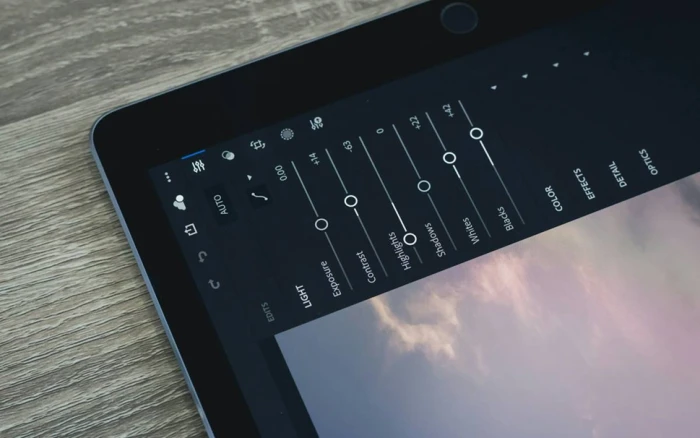
Sliders, masks, and layers are the kind of hands-on control a chat prompt cannot match on its own.
Read this the way you would read a spec sheet. Neither column is better everywhere. They are built for different moments, and knowing which is which tells you when to switch.
| What matters | Gemini and Nano Banana | A dedicated editor |
|---|---|---|
| How you edit | A written request in chat | Prompts plus real selections, masks, and sliders |
| Output resolution | Small by default, up to 4K on a paid tier | Full sensor resolution, print ready |
| Working files | Finished images only | Raw files, layers, non destructive edits |
| Precision | Reworks the whole frame from a sentence | You choose the exact pixels to change |
| Watermark | Visible mark plus an invisible tag | None on the file you export |
| Commercial use | Depends on the terms of your plan | Clear licences, some models trained for safety |
| Privacy | Runs in Google's cloud | Desktop tools can run on your own machine |
| Its best moment | Quick ideas, composites, and fun | Finished, client and print grade work |
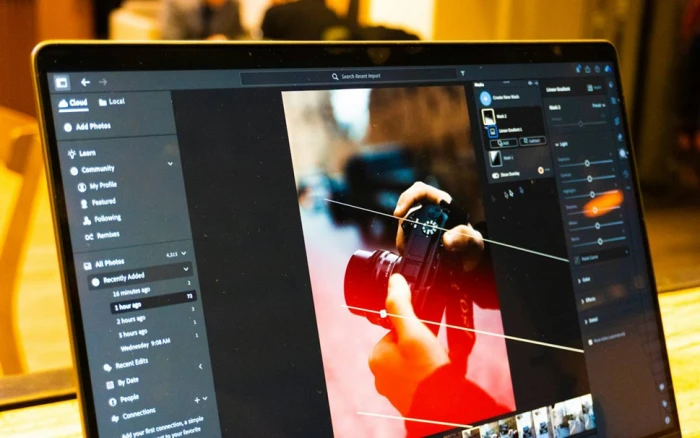
A dedicated editor keeps every panel and layer in reach, so you change exactly what you mean to and nothing else.
Almost every request lands in one of these buckets. Find yours, then read the matching entry below.
| Remove or replace an object, or fill a gap, for print grade work | Adobe Photoshop with Firefly |
| Develop raw photos, cull a shoot, keep color consistent across a set | Adobe Lightroom, or Luminar Neo without Adobe |
| Prompt based edits in a browser that are safer for commercial use | Adobe Firefly on the web |
| Turn a photo into a finished social post or ad, fast | Canva Magic Studio |
| Product shots for a store, clean backgrounds, done in bulk | Photoroom |
| Rescue a blurry, noisy, or tiny photo and make it large and sharp | Topaz Photo AI |
| Play, experiment, and iterate on looks in real time | Krea AI, or Gemini itself |
Each entry shows what the tool is best at, four quick meters, a rough price, the one thing to watch, and a link to its official site. Meters are a hands on read from one to five, not a lab score.
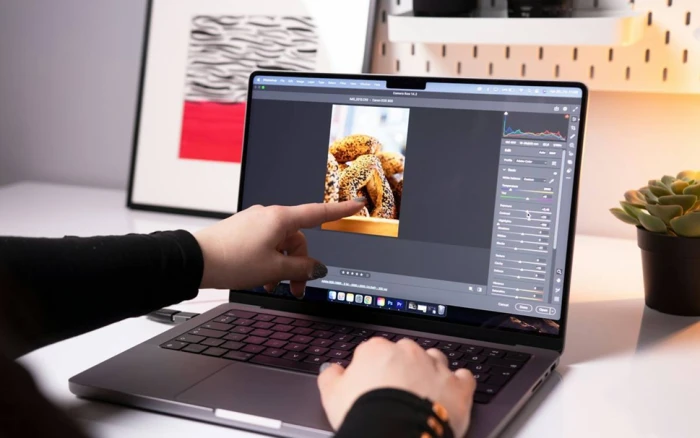
The right pick depends on the file you start with and where it needs to go, so read for your job rather than for a single winner.
Photography plan about $19.99 per month with Lightroom, or Photoshop on its own about $22.99
Best for: precise, layered edits

The professional standard, and the tool most others are measured against. Firefly powers Generative Fill, Generative Expand, Generative Upscale, and Harmonize, which matches a pasted subject to the scene's light and color. All of it sits on top of real layers, masks, and selections, so you can hand the tedious parts to AI and still correct a single strand of hair by hand. Where Gemini reworks the whole frame from a sentence, Photoshop lets you fence the edit to an exact region. It is the dependable choice for object removal, composites, and anything headed for print or a paying client.
| Control | 5/5 |
| Speed | 3/5 |
| Free access | 1/5 |
| Output | 5/5 |
Watch: a subscription and a real learning curve. It is more power than a quick one off edit needs.
Inside Adobe's Photography plan, roughly $10 to $20 per month
Best for: raw and big libraries
The home base for photographers who shoot in raw and manage thousands of frames. It develops raw files without touching the original, and its AI handles the slow jobs: subject and sky masking in a click, strong noise reduction, and adaptive presets. Its quiet superpower is consistency, or careful color grading applied to one image and matched across a whole set, which a conversational editor cannot do reliably. Newer cleanup tools remove people and reflections, and your work syncs across desktop, web, and phone.
| Control | 4/5 |
| Speed | 4/5 |
| Free access | 1/5 |
| Output | 5/5 |
Watch: it develops and organises rather than composites. Pair it with Photoshop for heavy retouching.
Free tier with credits, paid plans add more generations
Best for: commercially safer prompts
The closest thing to Gemini's ask and edit feel, but in a browser and aimed at professionals. Generative fill, expand, and remove all work from a text box, with nothing to install. The difference that matters for paid work is the training data: Firefly is built on licensed and public content, and Adobe positions its output as commercially safer, which lowers the copyright worry when new pixels land in a client deliverable. It also plugs straight into Photoshop and Lightroom, so a fast browser edit can move into a precise one later.
| Control | 3/5 |
| Speed | 4/5 |
| Free access | 3/5 |
| Output | 4/5 |
Watch: credits run down on the free tier, and it leans generative rather than fine grained.
Free tier, Pro around $15 per month
Best for: social and marketing
Where an edit becomes a finished, shareable piece. Magic Edit repaints part of a photo from a prompt, Magic Expand grows the canvas, and one tap background removal all sit right beside templates, fonts, brand kits, and instant resizing. That means one raw photo becomes a square post, a vertical story, and a banner without ever leaving the page. It is built for people who do not think of themselves as editors, and for teams that value speed and on brand output over pixel level control.
| Control | 3/5 |
| Speed | 5/5 |
| Free access | 4/5 |
| Output | 3/5 |
Watch: built for graphics, not deep photo retouching or raw development.
Free tier, paid from around $12.99 per month
Best for: product photos
A specialist that quietly beats general editors at one job: turning a phone snap of a product into a clean, consistent listing image. It removes backgrounds with unusually good edges, drops the subject onto tidy studio or lifestyle scenes, and runs the whole thing in batches with marketplace ready crops. Higher tiers add team features and a store integration. Most of it works from your phone, which suits sellers shooting stock on a kitchen table rather than in a studio.
| Control | 3/5 |
| Speed | 5/5 |
| Free access | 3/5 |
| Output | 4/5 |
Watch: narrow by design. Outside product and background work you will want a broader editor.
One time licence roughly $149 to $199, or a subscription, with a free trial
Best for: rescue and upscaling
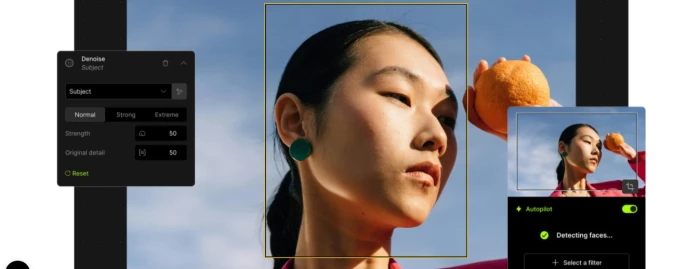
The repair shop of the list. Nothing here matches it for removing noise from a high ISO frame, recovering sharpness from a soft one, and enlarging a small image while inventing believable detail rather than mush. It runs entirely on your own machine, so your photos never touch a server, and it installs as a plugin for Photoshop and Lightroom, which makes it the natural last step before export. Think of it less as an editor and more as a rescue tool for when the file itself is the problem.
| Control | 4/5 |
| Speed | 3/5 |
| Free access | 1/5 |
| Output | 5/5 |
Watch: a single job tool. It fixes and enlarges, it does not compose or restyle.
Perpetual licence from about $119, or a subscription, with a free trial
Best for: photographers without Adobe

A full desktop editor from Skylum with a friendly face and a deep AI toolkit. GenErase and GenExpand cover removal and extension, GenSwap replaces objects, Sky AI swaps skies with matching light, and Upscale and Supersharp clean up detail, all with raw support and a built in catalog. It processes locally for privacy, and it can be bought outright rather than rented, though the newest generative tools are usually included for a year and then need an upgrade pass. A strong single app answer for portrait and landscape photographers who would rather not live inside Adobe.
| Control | 4/5 |
| Speed | 3/5 |
| Free access | 1/5 |
| Output | 4/5 |
Watch: it can be heavy on your computer, and a few AI tools arrive as timed or add on features.
Free tier, paid from around $9 per month, billed on credits
Best for: real time experiments
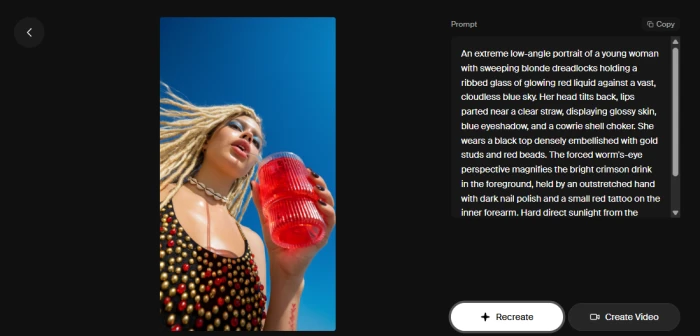
A browser studio built for fast, playful exploration. Its real time mode updates the picture as you type or paint, so trying ten looks takes seconds rather than minutes, and it gathers many models under one roof next to an enhancer that leans on Topaz technology for large, crisp upscales. That makes it a natural partner to Gemini: use either to imagine quickly, then push a favourite to full resolution. Pricing runs on credits, so a heavy day costs more, and the enhancer can add artefacts if you drive it too hard.
| Control | 3/5 |
| Speed | 5/5 |
| Free access | 3/5 |
| Output | 4/5 |
Watch: credits add up quickly at scale, and the enhancer can add artefacts if you push it hard.
On a zero budget? Pixlr runs a capable editor with layers right in a browser, GIMP is a free and open desktop editor, and Canva, Fotor, and Picsart all have real free tiers. Most free plans cap exports or advanced features and some add a watermark, so read the limits before you commit a project to one.
Prices are approximate as of mid 2026 and change often. Check each vendor before you buy.
| Tool | Best for | Standout AI | Starts at | Runs |
|---|---|---|---|---|
| Photoshop with Firefly | Precise, layered edits | Generative Fill, Harmonize, upscale, masks | ~$19.99/mo | Desktop, cloud |
| Lightroom | Raw and libraries | AI masking, denoise, adaptive presets | ~$10/mo | Desktop, mobile |
| Adobe Firefly (web) | Safer prompt edits | Generative fill, expand, remove | Free tier | Browser |
| Canva Magic Studio | Social and marketing | Magic Edit, Magic Expand, background remover | Free tier | Browser, mobile |
| Photoroom | Product photos | Background removal, staging, batch | Free tier | Mobile, web |
| Topaz Photo AI | Rescue and upscale | Denoise, sharpen, upscale | ~$149 once | Desktop, local |
| Luminar Neo | All round, no Adobe | GenErase, GenExpand, Sky AI, upscale | ~$119 once | Desktop, local |
| Krea AI | Real time ideas | Live generation, enhance and upscale | Free tier | Browser |
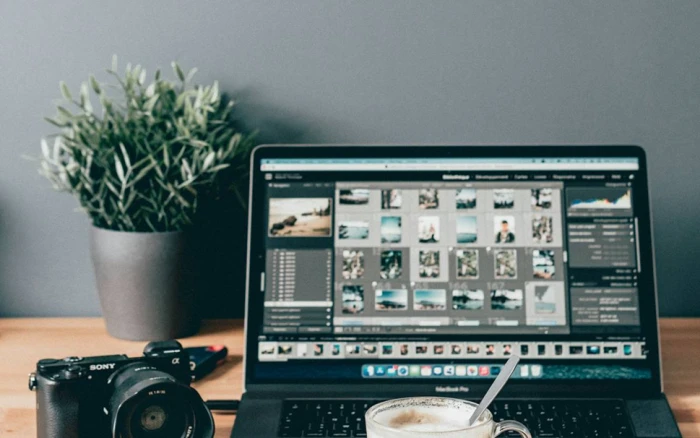
For big libraries the real work is organising and matching hundreds of frames, which is where a catalog based editor earns its place.
Whichever tool you pick, the same five moves keep an AI edit looking real and usable. Think of it as one strip of film.
| 1 | Start big | Open the highest resolution original you have, a raw file if possible. AI cannot invent detail you threw away. |
| 2 | One change | Make a single edit at a time: remove, replace, expand, or relight. Stacked prompts hide what went wrong. |
| 3 | Lock it | Protect what must not shift: a face, a logo, a product's real color. Say so in the prompt or mask it. |
| 4 | Refine by hand | Fix edges, skin, and text yourself where they matter. This is where a real editor earns its keep. |
| 5 | Export full size | Save at full resolution, then zoom in to check for smudges, warped text, or a stray watermark. |
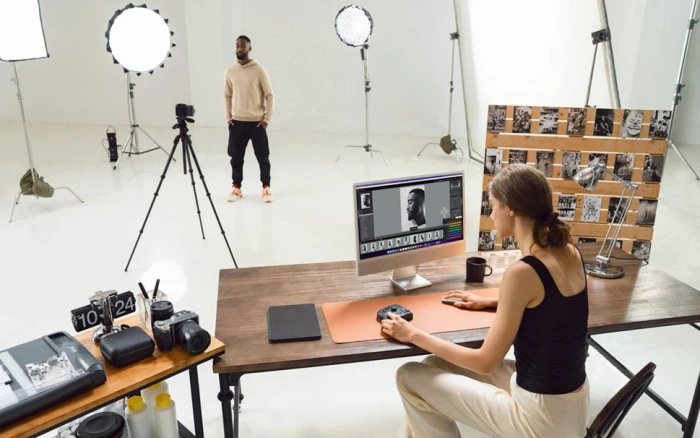
The unglamorous part, refining by hand after the AI has done the heavy lifting, is what separates a quick edit from a finished one.
Editing raw photos or a whole shoot, go to Lightroom, and Luminar Neo if you would rather skip Adobe. Removing or composing for print, Photoshop with Firefly. Finishing a social post, Canva. Cleaning product shots, Photoroom. Rescuing a small or noisy file, Topaz. Prompt edits you can sell, Adobe Firefly. And for pure fun and speed, Gemini and Krea are hard to beat.
Gemini is the easiest door into AI editing. The tools here are the rooms you walk into once you know what you want to make.
There is no single winner, and that is good news. Keep Gemini for fast, playful, conversational edits. Add one editor that fits your real work: Lightroom or Luminar for photographers, Photoshop for precise composites, Canva or Photoroom for content and commerce, Topaz for rescue jobs. The best setup is usually a small pair, one tool to imagine quickly and one to finish properly.
Turn one photo of you and your partner into 5 cinematic couple photos with Gemini's free image tools. Get 5 copy-and-paste prompts, each sho...
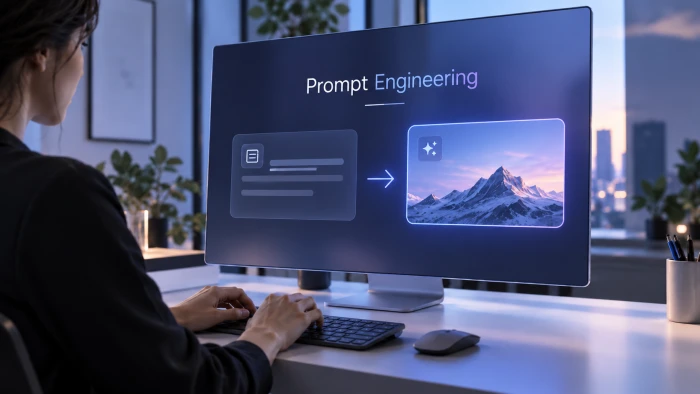
What prompt engineering meansPrompt engineering is the practice of writing clear instructions that guide an AI model toward the result you a...
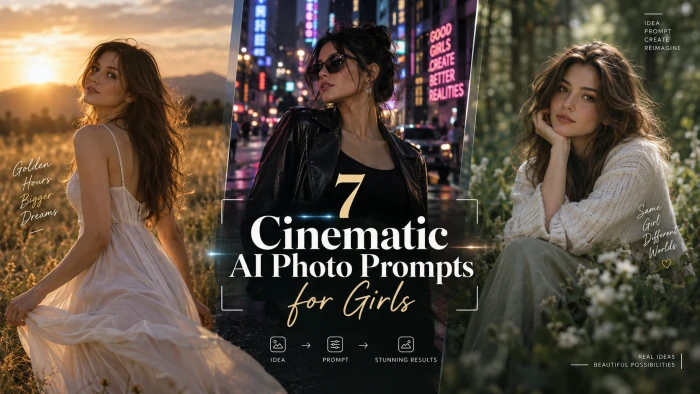
PROMPT COLLECTION7 Cinematic AI Photo PromptsEditorial portraits built from one reference photo, styled seven ways.The seven portraits in th...
Discussion
Join the discussion and share your thoughts below.
No comments yet. Be the first to share your thoughts!